You can sample a visible color on a Mac without installing anything. macOS includes Digital Color Meter, which shows the color beneath your pointer. Apple's Digital Color Meter User Guide explains how to sample pixels, adjust the aperture, choose a color space, lock the sampling position, and copy the displayed value as text.
The guide does not name every entry in the display-format menu. So check what your Mac actually copies before treating it as CSS HEX; the RGB-to-HEX method here works when a direct HEX option is absent.
1. Open Digital Color Meter
- Press
Command-Spaceto open Spotlight. - Type Digital Color Meter, then press Return to open it.
- If Spotlight does not find it, open Finder and choose Go → Utilities, or open Applications → Utilities. Launch Digital Color Meter from that folder.
Keep the app visible while you move the pointer over the color you want to sample. The readout updates with the pixels under the pointer.
2. Choose the color space and sample area
For a standard web or CSS #RRGGBB value, choose sRGB in Digital Color Meter's color-space menu if it is listed. Apple notes that displayed values depend on the selected color space. A Display P3 value copied as three channel numbers is not automatically the same color as those numbers interpreted as sRGB in CSS.
Use the Aperture Size slider to control how much of the screen contributes to the reading:
- For one small pixel or a sharp edge, make the aperture as small as the app allows and place the pointer on the pixel.
- For a textured or anti-aliased area, a larger aperture averages the pixels inside it. That can give a steadier representative value, but it will differ from any one pixel in the area.
When the pointer is over the target, press Command-L to lock the aperture in both directions while you work. Command-X locks it horizontally and Command-Y vertically. These commands lock the sample location; they do not copy the value.
3. Check the format, copy, and verify
- Open View → Display Values. Apple documents this menu for changing the displayed values in RGB-based color spaces, but its guide does not enumerate the exact menu entries.
- If your menu offers an as Hexadecimal choice, select it. Then choose Color → Copy Color as Text or press
Shift-Command-C. - Paste into a plain-text field and inspect the result. A CSS six-digit HEX value has a leading
#followed by six characters from0-9orA-F, such as#287DD2. Do not assume the copy shortcut adds the hash or always copies HEX; it copies the value currently displayed.
If you already have three two-digit hexadecimal channel values, join them in red, green, blue order and put one # in front: 28, 7D, D2 becomes #287DD2. This is generic formatting guidance, not a claim about Digital Color Meter's output. If each channel has a 0x prefix, remove those prefixes before joining them: 0x28, 0x7D, 0xD2 also becomes #287DD2.
If the menu has no hexadecimal choice, or the pasted text is RGB rather than #RRGGBB, use the conversion below. Apple confirms the text-copy shortcut and the display-format menu in its guide; the exact HEX option and copied string should be confirmed on the Mac and macOS version you use.
Convert RGB to HEX without a converter
This fallback uses 8-bit sRGB channels from 0 to 255. If Digital Color Meter lets you choose an 8-bit or 0–255 display, use it. If it shows normalized channel values from 0 to 1 instead, multiply each by 255 and round to the nearest whole number first. Do not treat percentages or values from another color space as 0–255 sRGB channels.
For each channel, divide by 16. The quotient is the first hexadecimal digit and the remainder is the second. Digits 10 through 15 are A through F. Put the red pair first, then green, then blue, and add # at the front.
| Channel | Decimal value | Divide by 16 | Two HEX digits |
|---|---|---|---|
| Red | 40 | 2 remainder 8 | 28 |
| Green | 125 | 7 remainder 13 (D) | 7D |
| Blue | 210 | 13 (D) remainder 2 | D2 |
So the worked example RGB(40, 125, 210) becomes #287DD2. This is a mathematical example, not a claim about a particular sampled screen pixel. For any channel below 16, keep the leading zero: decimal 10 becomes 0A.
Paste the result into a CSS declaration such as color: #287DD2;. If it looks different from the source on screen, recheck that you sampled the intended pixel and used sRGB values; a HEX string does not record a different source color profile.
For repeated sampling: Fling's optional workflow
Digital Color Meter is enough for an occasional sample. If you sample colors often, Fling has a configurable Color Picker slot: hold its default Control-Option shortcut (or your chosen trigger), flick the pointer toward that slot, and release. Choose the screen color in macOS's sampler. When Fling's result card appears, click HEX, RGB, or HSL to copy that format. Sampling alone does not copy a value. Fling converts the returned color to sRGB before presenting its formats; see the Fling feature overview.
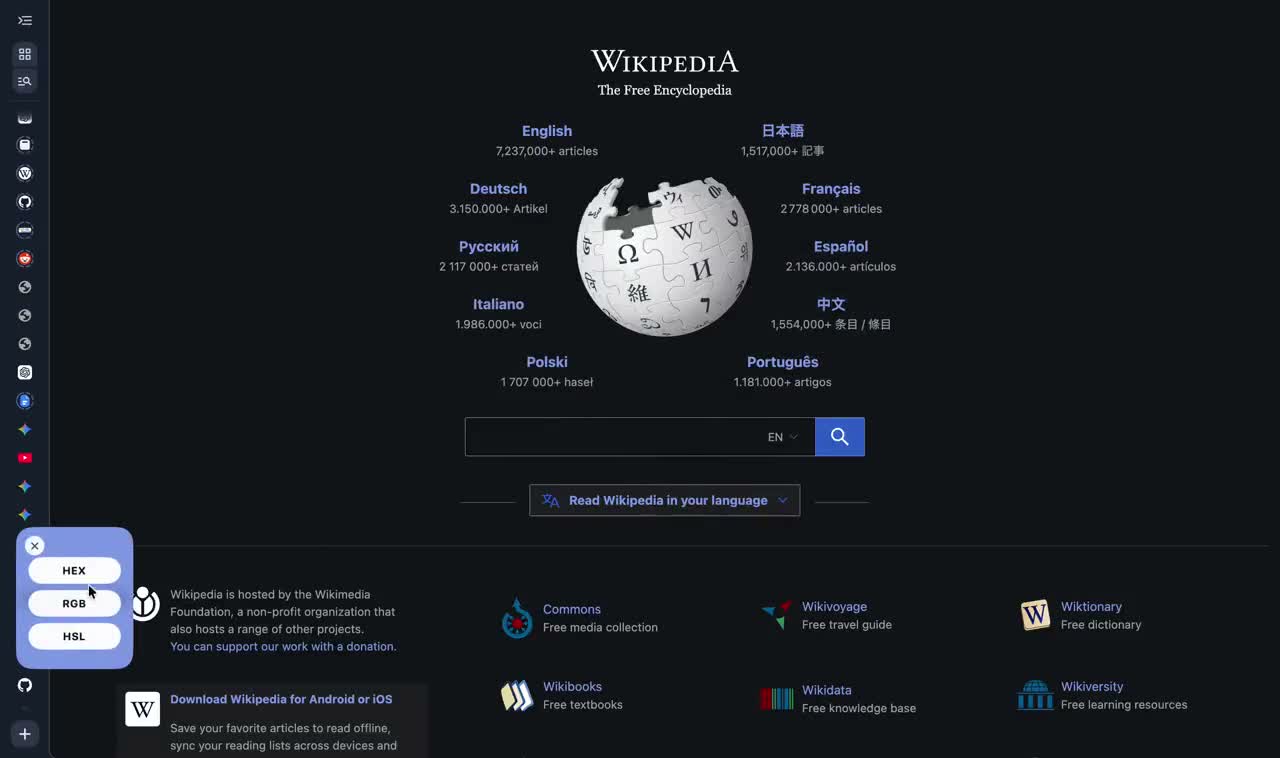
Fling checks for Screen Recording access before opening its picker. On first use, allow the permission when macOS asks, then quit and reopen Fling before trying the Color Picker again. If access was denied earlier, review the screen-capture permission in System Settings → Privacy & Security; the exact label can vary by macOS release. Apple's screen and system audio recording guide describes these controls.
Keep a color picker in your command wheel
Fling is an optional shortcut for repeated sampling; the built-in Digital Color Meter remains a free way to do this once. Fling targets Apple Silicon and macOS 14 or later. The developer reports hands-on testing on an M1 MacBook Air with macOS 26 only; this is not a full compatibility matrix, and a fresh public download, install, and activation path has not been verified here.
See Fling features and pricingAs listed on the site on October 7, 2026: $4.99 USD early-launch price ($9.99 regular), one-time purchase for up to two Macs, with a 14-day refund policy. No free trial.